Documentation › User manual › Website
Two-factor (2FA)
With two-factor on, signing in needs your password and a 6-digit code from an app on your phone.
-
Install an authenticator app on your phone, for example Aegis, Google Authenticator or 1Password.
-
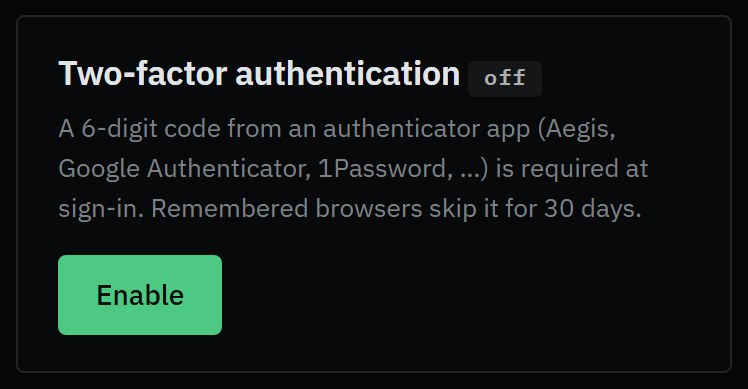
Sign in to the website and open Account. Under Two-factor authentication press Enable.
 View full image
-
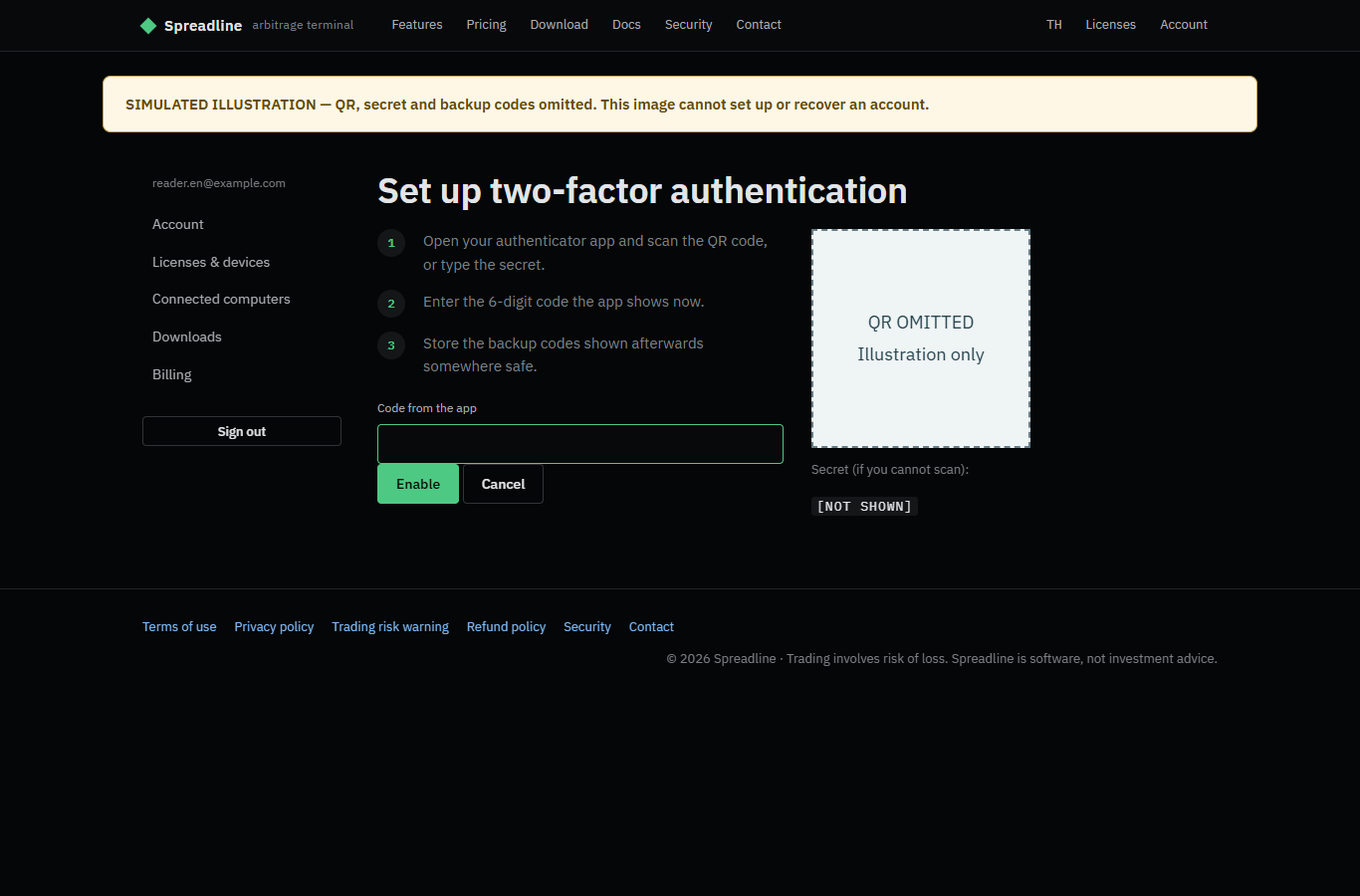
Scan the QR code with the app (or type the secret shown under it). Type the 6-digit code the app shows now and press Enable.
 View full image
Simulated illustration: QR, secret and recovery codes are omitted. Use only the values generated privately in your own account. -
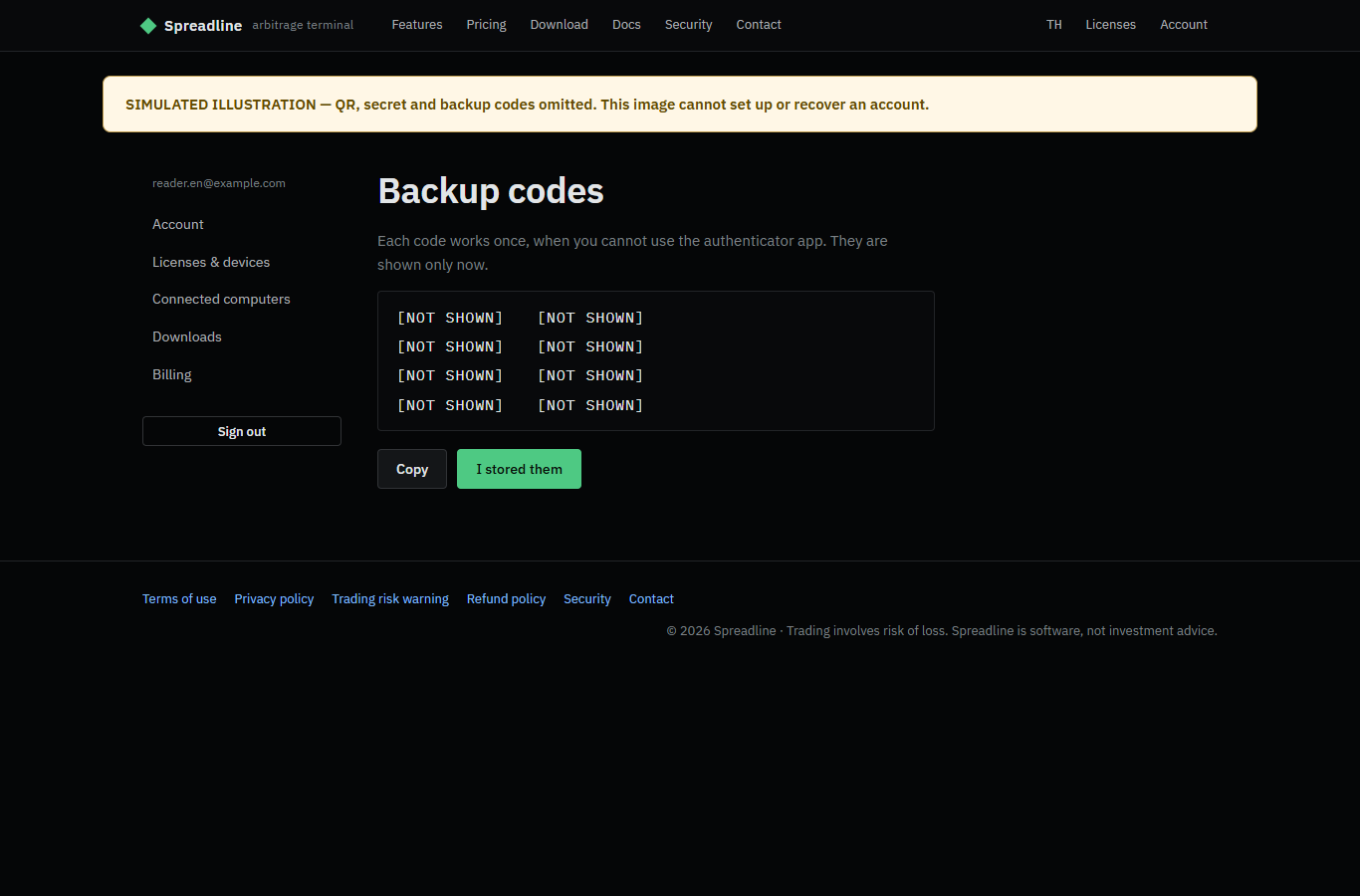
The website shows 8 backup codes, only this once. Store them somewhere safe and press I stored them. Each backup code works once.
 View full image
Simulated illustration: QR, secret and recovery codes are omitted. Use only the values generated privately in your own account. -
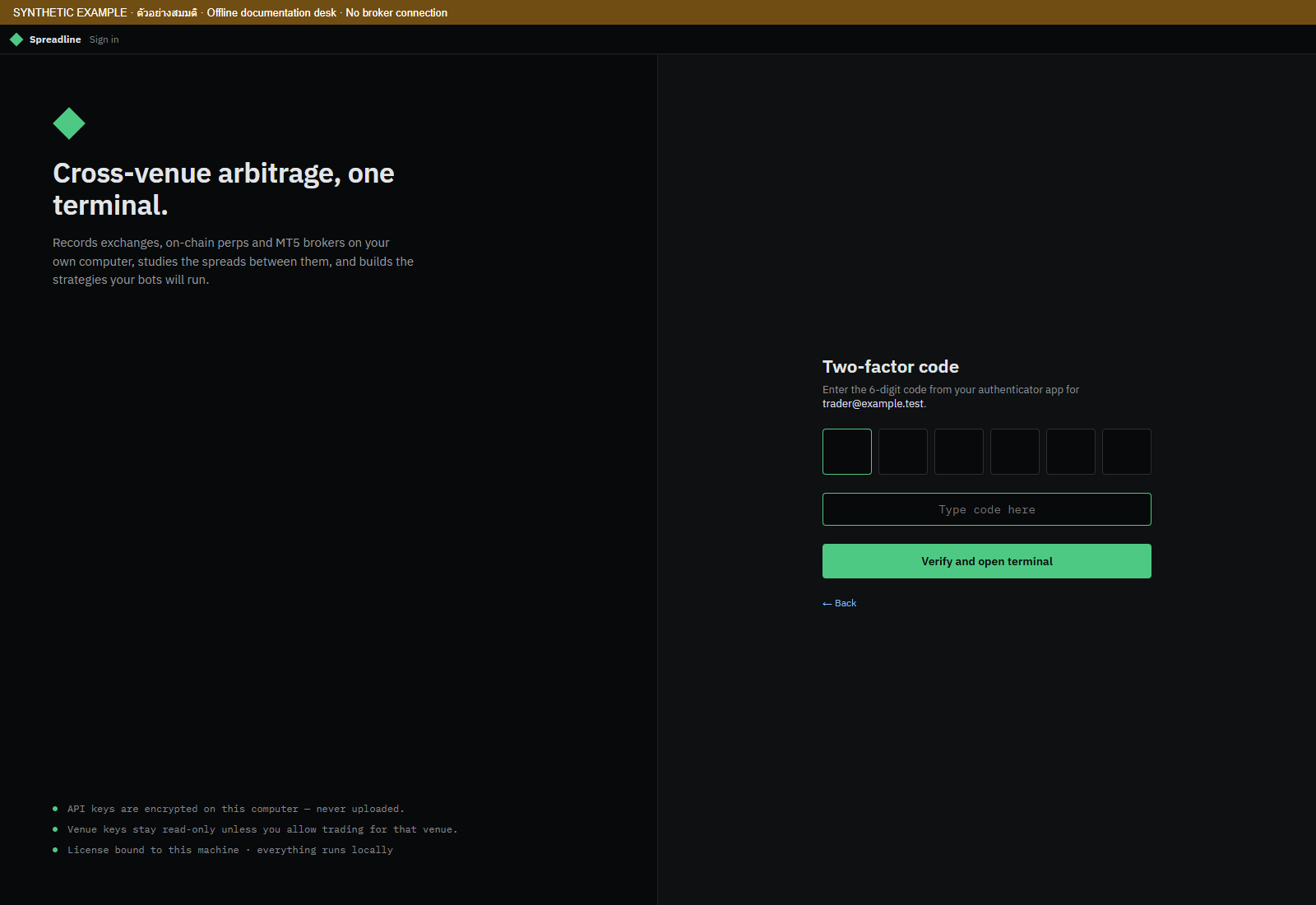
From now on the website asks for the code when you sign in, and so does the desktop program when you sign in there.
 View full image
Synthetic example: invented accounts and prices. This picture is not trading or test evidence. -
To turn two-factor off: open Account, type a current code or a backup code and press Disable two-factor.
- Lost your phone? Sign in with one of your backup codes, then set up two-factor again on the new phone.
- Two-factor is managed on the website. In the desktop program, Settings › Account shows "Password and two-factor on the website".