Documentation › User manual › Website
Forgot password
If you forgot your password, the website emails you a link to choose a new one.
-
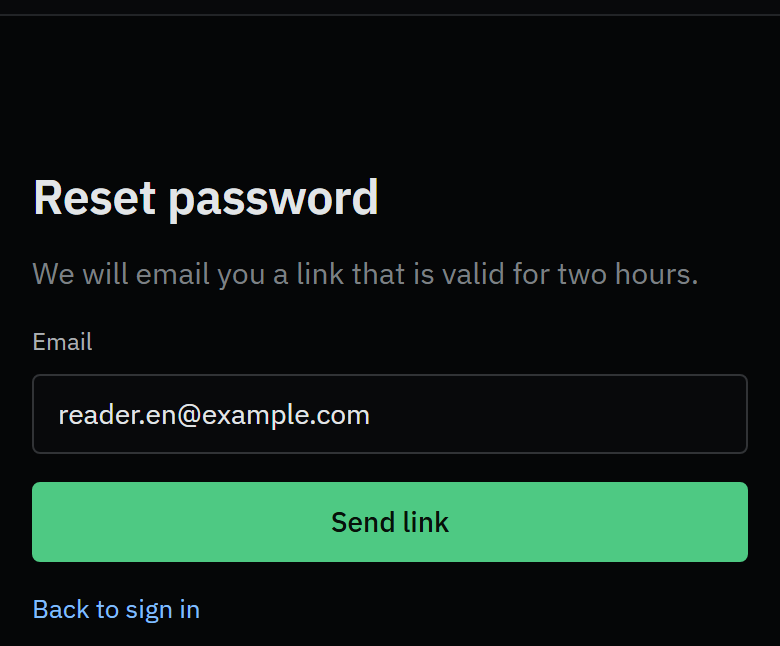
On the Sign in page press Forgot?. Type your email and press Send link.
 View full image
-
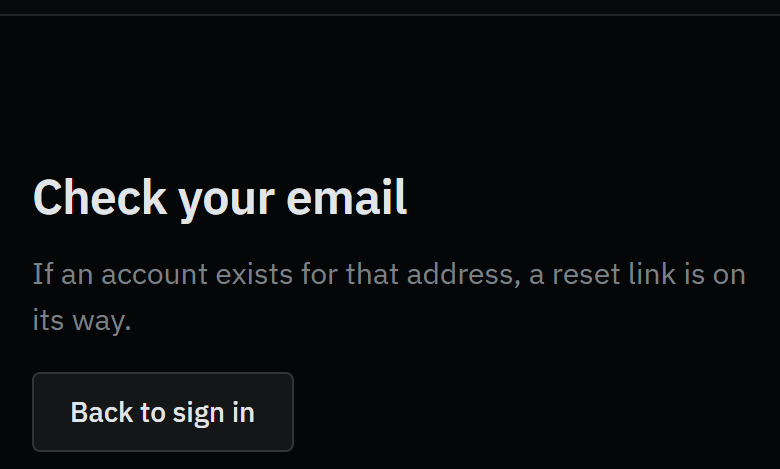
The page says the link is on its way. It only arrives if an account exists for that email.
 View full image
-
Open the email and click the link. It works for 2 hours.
-
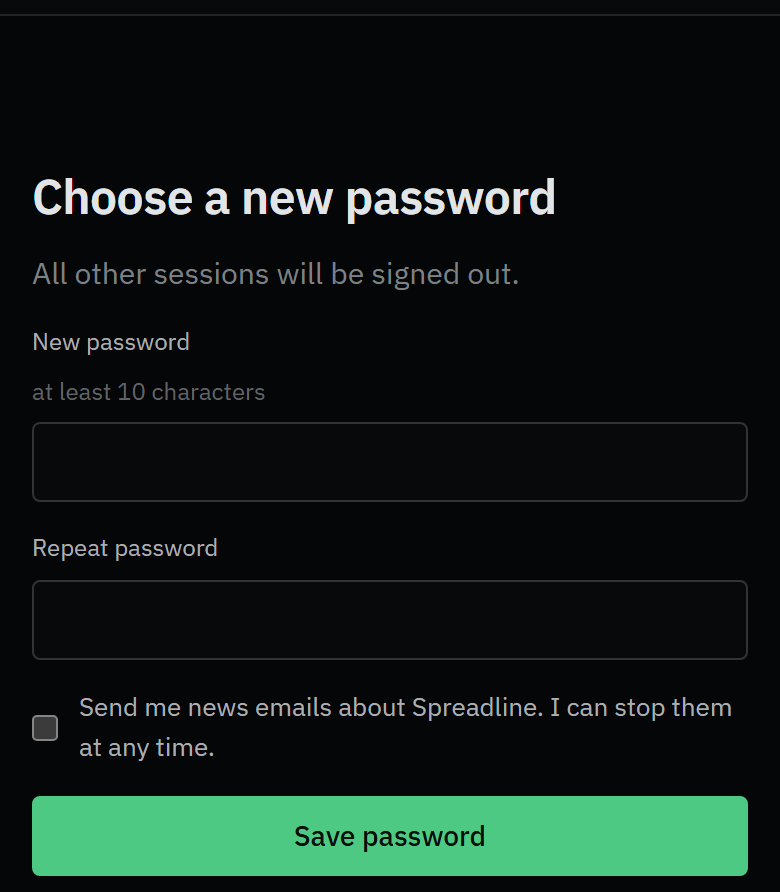
Type a new password of at least 10 characters twice and press Save password. You are signed out on every other device.
 View full image
-
Sign in with the new password, on the website and in the desktop program.
Good to know
- The link works once: after a successful reset it cannot be used again. Ask for a new one if you need it.
- If the new password is refused (too short, for example), the same link still works: just try another password.
- A new password also ends the desktop program's connection to your account: sign in there again with the new password.