Documentation › User manual › Spreadline desktop program
Venues
A venue is your MT5 broker account. Spreadline attaches to the MetaTrader 5 terminal running on this computer; it never signs in for you.
-
Open MetaTrader 5 and sign in to your broker account there.
-
In Spreadline open Venues and press + Add venue. MT5 broker is the venue you can add.
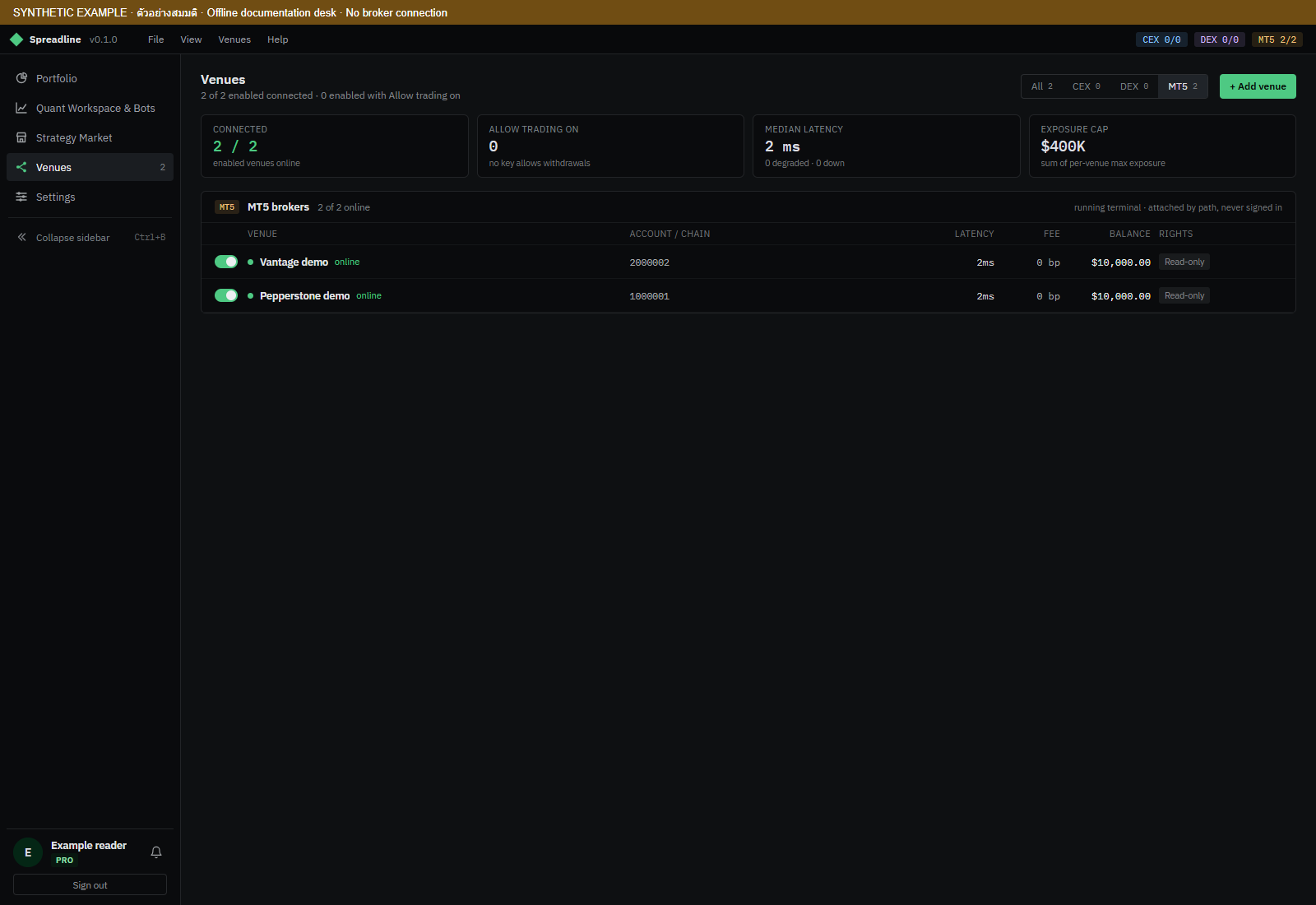 View full image
Synthetic example: invented accounts and prices. This picture is not trading or test evidence. -
Fill in the display name, the terminal path (the path to terminal64.exe), and the server and login exactly as the terminal shows them. Press Save.
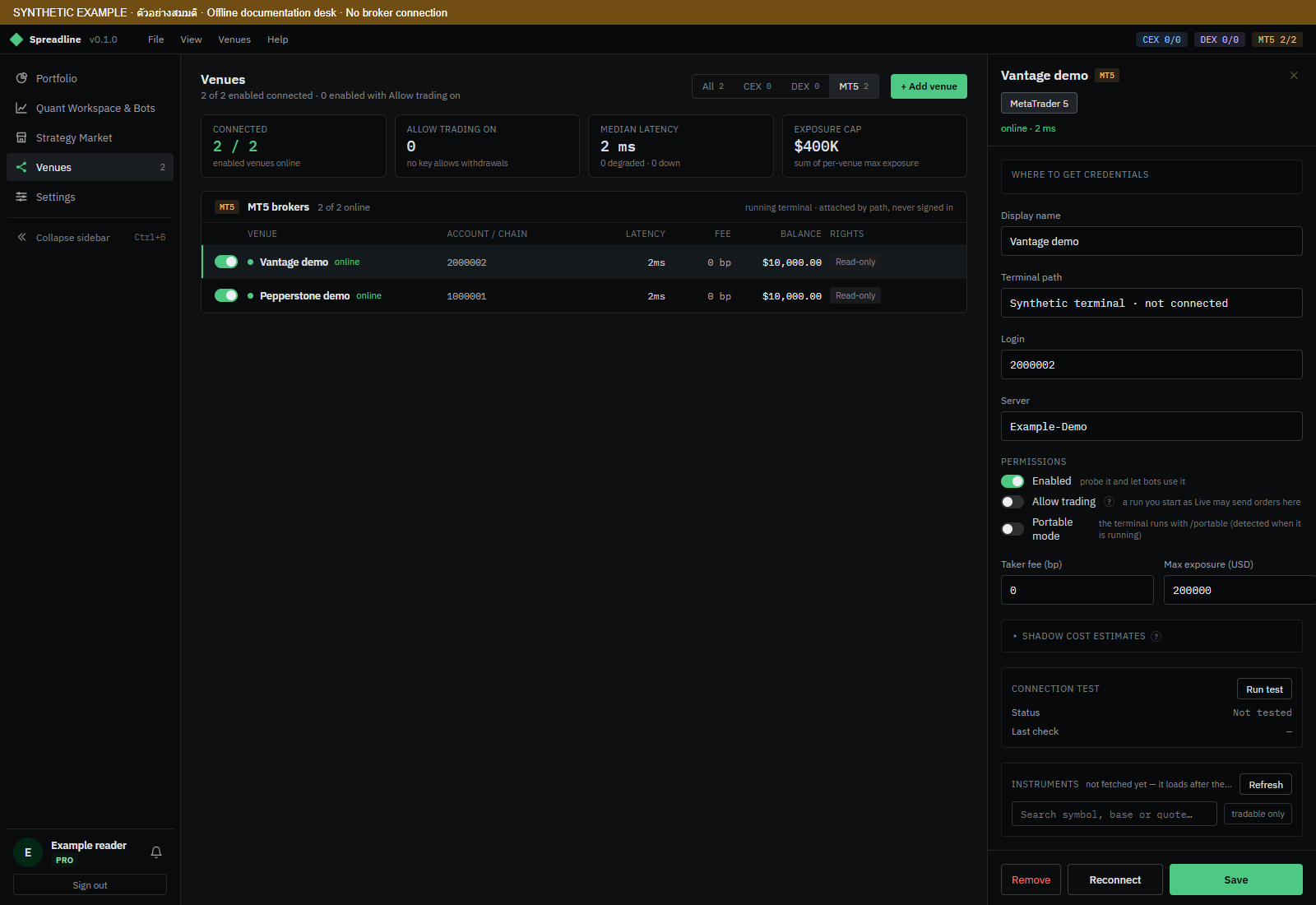 View full image
Synthetic example: invented accounts and prices. This picture is not trading or test evidence. -
Press Run test. It shows the terminal, the account, the balance and free margin, and whether AutoTrading is on. A different login or server is reported.
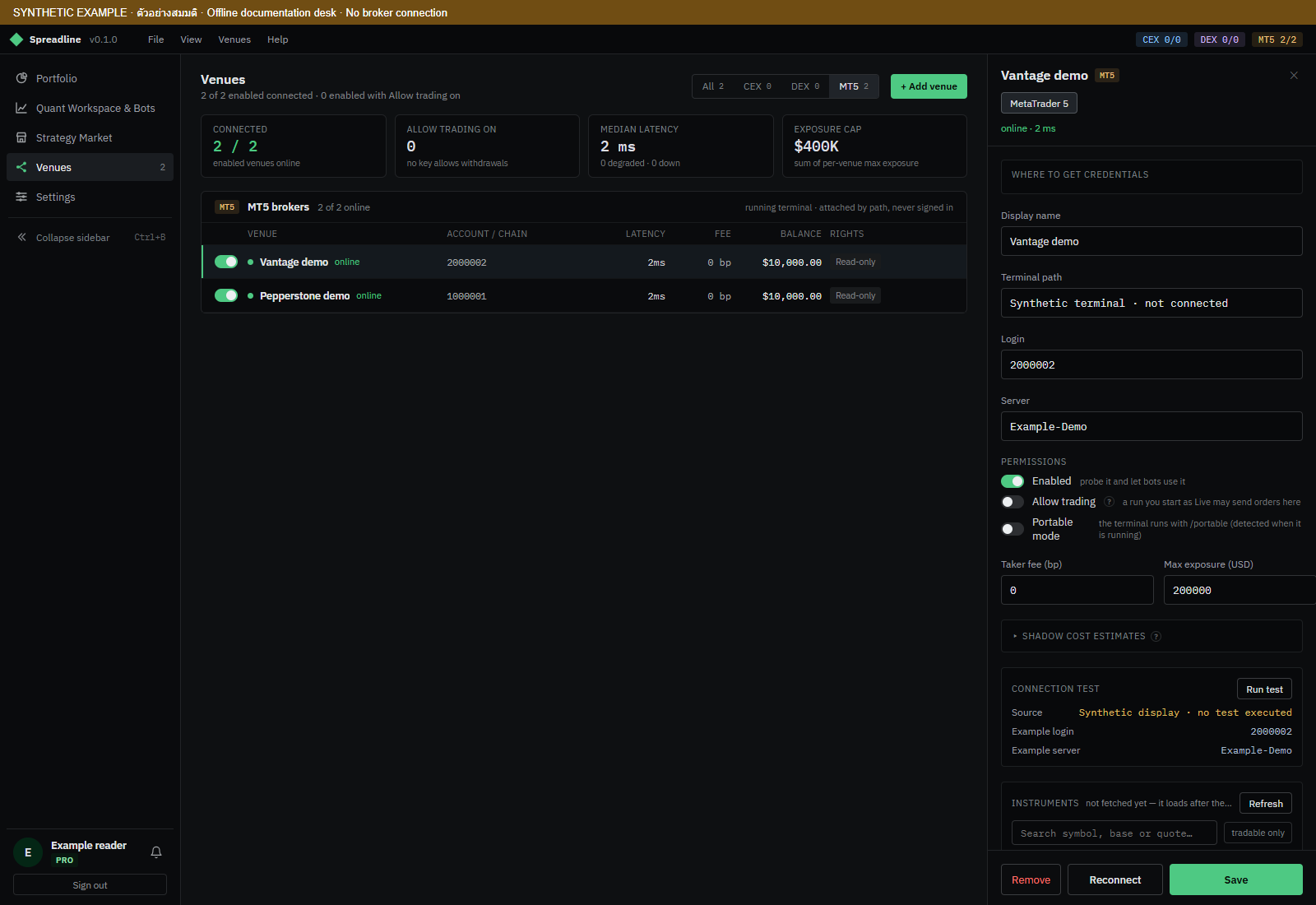 View full image
Synthetic example: invented accounts and prices. This picture is not trading or test evidence. -
Allow trading: switch it on only when you are ready for Live, and press Save. From then on a run you start as Live sends real orders on this account.
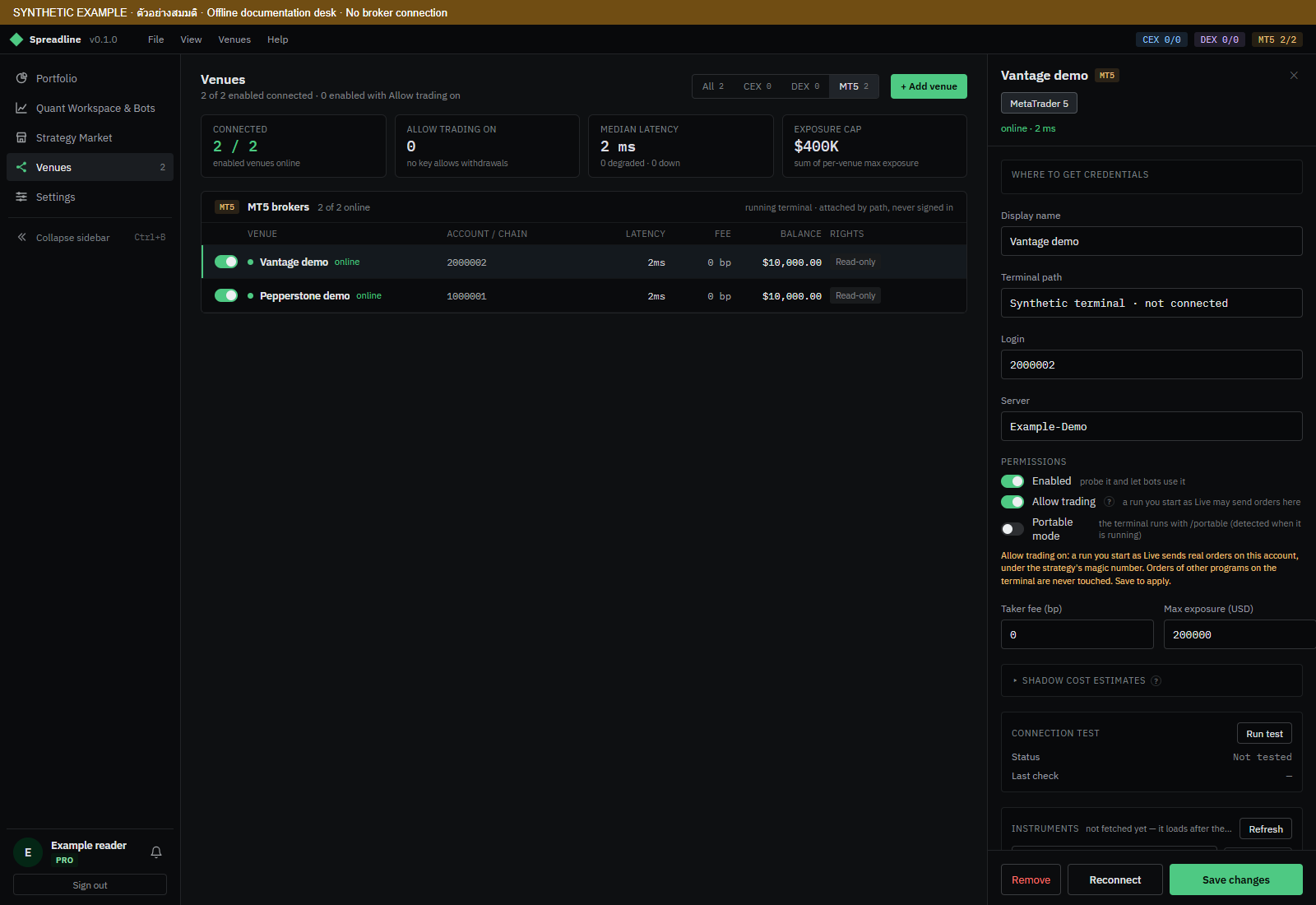 View full image
Synthetic example: invented accounts and prices. This picture is not trading or test evidence.
- The server and the login are only compared with the terminal, never used to sign in.
- A Shadow run sends no order, whatever Allow trading says.
- Switching Allow trading off while a Live run holds positions asks you to confirm: nothing more is sent for it (no exit, no stop loss) until you switch it on again or close the positions in MT5 yourself.
- Turn AutoTrading on in the MT5 terminal before you go Live.